
Understand Designs vs. Samples in Lab Thread
Learn the core differences between theoretical designs and physical samples in Lab Thread, and discover how creating designs first speeds up sample logging.
This guide explains the foundational differences between theoretical designs and physical samples within Lab Thread. By understanding these concepts, you can streamline your inventory workflow and log new physical samples much faster.
This applies to lab managers and researchers who are configuring their inventory tracking system. It is most helpful when establishing a new database structure or preparing to log large batches of physical inventory.
In Lab Thread, managing your inventory requires understanding two core concepts: Designs and Samples.
| Concept | Description | Example Properties/Data Fields |
|---|---|---|
| Design | The theoretical blueprint of what you are trying to create. | Information that does not change. Biological safety category, preferred culturing conditions. |
| Sample | The physical embodiment or actual tube of a design in the lab. | Information that can vary based on the sample. Sterility, mycoplasma status, volume, concentration, pH. |
By building out your Designs first, you only have to define fixed characteristics once. When you subsequently log physical Samples, referencing those pre-existing Designs drastically speeds up your data entry.
Exploring Designs
Begin by familiarizing yourself with the theoretical designs currently configured in your system.
1. Click Designs in the left-hand navigation menu.

2. Select a specific category, such as Cell, to view its theoretical design details.

3. Click a specific cell line, like HEK293, to review its fixed biological properties.

Ideally create your design for the first time and immediately share it with your teammates so they can use the same design as you when logging samples.
Logging Samples Using Pre-Existing Designs
Once your theoretical designs exist and are configured (most will only require a name), creating physical samples becomes a much faster process.
4. Click Samples in the left-hand navigation menu.

5. Click Log Samples in the top right corner.

6. Select Cell from the Design Type dropdown menu.
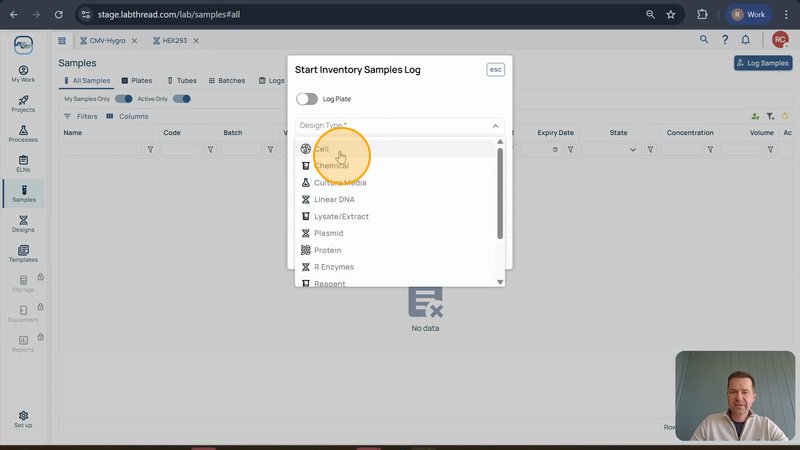
7. Select the relevant design type for your sample, for example Cell, from the Design Type dropdown menu. Then select a sub-type if needed, such as Mammalian Suspension, from the Sub-Type dropdown menu. Click Start to open the sample entry table.

8. Select the relevant design, for example HEK293, from the Design dropdown to link this physical sample to the theoretical blueprint.

9. Click the Next button to add sample associated data, or Log when you are finished and want to log the new sample data.

Q: Do I have to create a new design for every single physical sample?
A: No. You only need to create a design once. After the theoretical design (like a HEK293 cell) is created, you can apply it to hundreds of physical samples in the future.
Q: Can administrators customize the fields available for designs and samples?
A: Yes. System administrators can control the properties and add custom fields to both designs and sample records based on your lab's specific needs.
Q: Why should I create designs before logging samples?
A: Having pre-existing designs makes logging samples much faster, as data fields that are consistent for the design do not needed to be added over and over again when logging samples (like biosafety category).
Q: Can I create the design when logging samples?
A: Yes. When logging samples you can use the + button next to the Design column in the sample logging pop-up. You can then create the new design from there.
| Term | Definition |
|---|---|
| Design | A theoretical blueprint defining the inherent, unchanging properties of a lab entity. |
| Sample | The physical embodiment of a design, such as a specific vial or tube stored in the lab. |